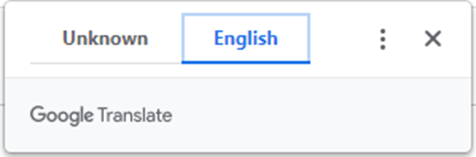
To translate this page, please click the Google translate icon in the top right corner of the page.
This page includes resources for parents/guardians, staff, and students to help them support and participate in the Census.
Reach Out to Staff at Your/Your Child’s School for Support
Students and parents/caregivers are encouraged to reach out to staff at their/their child’s school for support in completing the Census. Key staff members at your school that may support you include:
- School principal
- School vice-principal
- Guidance counsellor
- Classroom teacher
- Special education resource teacher
- Educational assistant
- School settlement worker
- English second language teacher
- Child & youth worker
Using Read&Write for Google Chrome
The Student Census website and the questionnaire are designed to allow for screen readers and translation features to improve accessibility of information and resources. The Read&Write extension for Google Chrome can read Student Census information and questions out loud in multiple languages for students and parents/caregivers who would benefit from this accessibility. You can add the extension for:
For more information on accessing and using Read&Write please see the follow resources:
- Read&Write for Chrome: Quick Reference
- Read&Write : Tool Usage Parent Guide
- Link to Instructional video
Using the Read&Write extension for Google Chrome
The Read&Write extension for Google Chrome will allow students, parents/guardians, and staff to have the Student Census automatically read out loud to help them as they complete the Student Census. You can add this feature to Google Chrome.
In addition to reading the words on the screen in English, it also supports translations through Google Translate functions.
For information on what Read&Write can do and how it works, watch this video.
For help setting up and using Read&Write for Google Chrome, please feel welcome to contact the WRDSB Research Department at research@wrdsb.ca.
Translating Student Census Information and the Questionnaire
All Student Census information pages and the Student Census questionnaire can be translated using translation features on each page:
For the WRDSB Student Census information pages on WRDSB website you can click the icon in the top right corner of the screen. The icon looks like this:

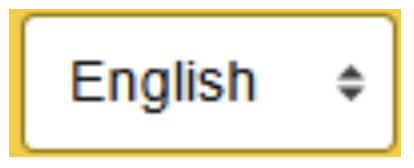
When you open the Student Census questionnaire that arrives in your email inbox on March 25, 2026, you can translate the questionnaire in many languages by clicking the language menu in the top right corner of the welcome page of the Census. The translation menu looks like this:
On the Census questionnaire preview pages (student version and parent/guardian version) you can translate these pages by right clicking on the page and selecting ‘Translate to’ from the menu that appears. A menu will appear in the top right corner that will allow you to select from many languages. The menu looks like this: